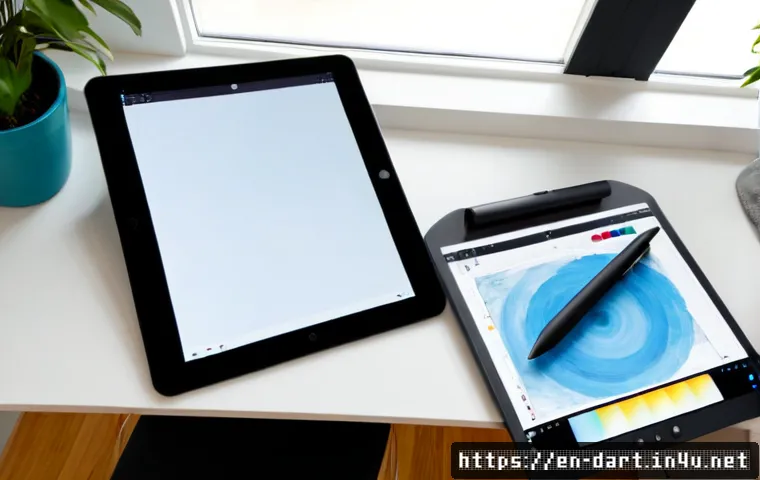
The fastest way to improve a digital art workflow is usually to organize your current setup before buying new hardware or subscriptions. Start with cleaner files, faster shortcuts, reusable templates, and a reliable backup routine; then invest only where a real bottleneck remains.

A drawing tablet, creative software plan, cloud storage service, or paid asset library can be useful when it matches the way you actually work. The right choice depends on your medium, canvas size, client requirements, device compatibility, and budget.
No upgrade can guarantee a specific speed improvement, but a focused system can reduce avoidable searching, revision delays, and lost-work risks. This guide helps you compare free workflow changes with paid tools without paying for features you may never use.
At a Glance
- Free workflow changes such as shortcuts, layer systems, templates, and reference boards should usually come first.
- Paid tools can save time when they solve a proven issue with performance, portability, storage, or asset access.
- Check compatibility and commercial licensing before choosing software plans, cloud storage, drawing tablets, or asset subscriptions.
| Workflow Upgrade | Cost Level | Best Use Case | Common Limitation |
|---|---|---|---|
| Shortcuts, templates, and layer rules | Free | Repeated actions, revisions, and file navigation | Requires a little setup and consistent use |
| Creative software subscription | Recurring cost | Artists who need specific tools, exports, or file compatibility | Features may exceed your actual needs |
| Drawing tablet | One-time purchase | Artists who need a different drawing feel, portability, or pressure control | May not fix slow files or disorganized revisions |
| Cloud storage | Recurring cost | Syncing active work and accessing files across devices | It does not replace a local backup |
| Paid brush packs or asset libraries | One-time or recurring cost | Projects that need permitted textures, brushes, or references | Commercial-use rights vary by provider and project |
The Fastest Workflow Gains Usually Come From Setup, Not More Tools
Before comparing creative software subscriptions or hardware upgrades, make the current workflow easier to repeat. A faster system is usually one where you can find the correct file, layer, brush, reference, and export setting without stopping to search.
The Three Changes to Make Before Purchasing Anything
First, create a simple file naming pattern for active projects, versions, and exports. Second, use layer names, groups, and color labels so important edits are visible at a glance. Third, assign frequently used actions to keyboard shortcuts or a customizable quick-access menu. These changes cost nothing and can make complex illustrations easier to revise.
Identify Where Time Is Actually Being Lost: Drawing, Revisions, Files, or Exporting
Do not assume slow work means you need a new drawing tablet or computer. Notice the moment where progress stops. If you repeatedly hunt for files, improve naming and folders. If client feedback is confusing, improve versioning and layer groups. If large canvases and high-resolution brushes make the application harder to use, performance may be the actual issue.
A Quick Priority Order for Workflow Improvements
Start with habits that remove repeated friction. Next, improve storage and backups if lost work or missing files are a concern. Then evaluate software plans, tablets, asset subscriptions, or computer hardware only when they address a specific limitation. Buy for a documented bottleneck, not for a vague feeling of being behind.
Compare Workflow Upgrades by Time Saved, Cost, and Learning Curve
Every upgrade has a trade-off. Free changes often need discipline, while paid tools may add setup time, recurring costs, or licensing checks. The useful question is not which option looks most professional; it is which option supports your current deliverables.
Free Improvements: Shortcuts, Templates, Layer Systems, and Reference Boards
Reusable canvas templates can keep common dimensions, layer groups, and export habits consistent. A reference board can support consistency in color, lighting, anatomy, materials, and composition. Keep it accessible, but avoid covering the working area with so many images that it becomes another distraction.
Paid Options: Software Plans, Tablets, Cloud Storage, and Asset Subscriptions
A creative software plan may be worth considering when required tools, export formats, or file compatibility matter to your work. A drawing tablet may suit artists who need different pressure control, screen size, or portability. Cloud storage can help synchronize active work, while paid brush packs, texture libraries, and stock-reference subscriptions may help when their permissions fit the project. Always review the terms for commercial use before relying on paid assets for client work.
When a Computer or Tablet Upgrade Is Justified
Consider hardware when your normal canvas size, layer count, or high-resolution brushes regularly create performance demands that interfere with work. That is different from an occasional slow file. Check the software and device compatibility, your typical project size, and whether portability or drawing input is the real priority before comparing models.
Comparison Table: Cost Level, Best Use Case, and Common Limitation
Use the table above as a first filter. If the problem is repetitive clicking, shortcuts are the lower-cost starting point. If the issue is safe access to current files, compare cloud storage features alongside a local backup plan. If you need licensed production assets, compare the provider’s commercial terms before adding another subscription.
Build an Efficient Production System for Every Illustration
A production system should make the next project easier without forcing every illustration into the same creative process. Keep the structure simple enough that you will use it under deadline pressure.
Create Reusable Canvas, Export, and File-Naming Templates
Save starting files for recurring project types. Include your usual canvas setup, basic layer groups, and export reminders where appropriate. Use clear names that separate working files from final exports and revision versions. This reduces uncertainty when you return to a project later.
Organize Layers for Faster Editing and Client Feedback
Group layers by meaningful areas of the illustration, such as subject, background, effects, or text. Use color labels to flag layers that are likely to change. Clear organization helps when feedback requests affect only one part of an image, rather than forcing you to search through a long unnamed stack.
Set Up Brushes, Palettes, Actions, and Shortcut Groups
Keep a small, dependable set of brushes for common tasks instead of opening an oversized collection every time. Save palettes that fit recurring visual work. Put frequent commands in shortcut groups or quick-access menus, especially for operations you repeat during drawing, cleanup, and exporting.
Keep References Accessible Without Overcrowding the Canvas
Reference boards work best when they answer a current question: lighting direction, material behavior, anatomy, color relationships, or composition. Separate general inspiration from active project references. This keeps the board useful rather than visually noisy.
Prevent Slowdowns, Lost Files, and Expensive Rework
Preventing rework is part of productivity. An organized revision system and a backup routine may not feel creative, but both can protect time already spent on an illustration.
Manage Large Files and Performance-Heavy Brushes
Large canvases, many layers, and high-resolution brushes can increase memory and processor demands. When a project becomes difficult to work with, review whether every active layer and brush setting is necessary for the current stage. Avoid assuming that a paid upgrade is the only answer before checking the file itself.
Use Versioning Before Major Changes or Client Revisions
Save a new version before major edits and before applying feedback that changes the direction of the piece. This gives you a clear return point if the revision needs to be reconsidered. It also makes communication easier when multiple exports or approvals are involved.

Back Up Active Projects With Local and Cloud-Based Options
Cloud synchronization and local backups serve different purposes. Cloud storage can help keep active files available across devices, while a local backup provides another layer of protection. Use both thoughtfully rather than treating one as a complete replacement for the other.
Check Commercial-Use Rights Before Relying on Paid Assets
Paid brush packs, texture libraries, and stock-reference subscriptions can have different licensing terms. Confirm the permissions for the specific provider, asset, and intended use. A useful asset library is not just one with attractive content; it is one with terms that fit your personal or commercial project.
Adapt the Workflow to Your Type of Digital Art Work
The same setup does not suit every artist. A personal sketching practice, a fast commission workflow, and a detailed print-ready illustration can require different priorities.
Fast Turnaround for Social Content and Simple Commissions
Use compact templates, a controlled brush set, quick-access actions, and consistent export habits. For fast work, the goal is to reduce small decisions that repeat from project to project. Avoid adding complex asset subscriptions unless they are genuinely used in the deliverables.
Client Work That Needs Clear Revision Stages and Organized Exports
For client projects, prioritize readable layer groups, versioned files, and clear export naming. Keep the working file separate from delivery files. If assets are involved, confirm commercial licensing before they become part of the approved artwork.
Detailed Illustration, Concept Art, and Print-Ready Projects
These projects may place more demand on canvas size, layer count, brush resolution, and computer performance. Build references around the specific visual problem and keep major components organized for later editing. Hardware evaluation becomes more relevant when your normal working files repeatedly exceed what your current setup handles comfortably.
Personal Projects Versus Work That Needs Commercial Licensing
Personal projects may allow more flexibility in the tools and references you test. Commercial work requires more careful checks around asset permissions, client specifications, file compatibility, and deliverable formats. Do not assume a subscription automatically grants every form of commercial use.
Selection Criteria and Comparison Summary
Before committing to a creative software subscription, drawing tablet, cloud storage plan, or paid asset library, check these points:
- Required tools: Does the software include the tools and export options your work actually needs?
- File compatibility: Can you open, save, and share the file types required by clients or collaborators?
- Device fit: Does the tablet or computer suit your canvas size, portability needs, pressure control preferences, and normal workload?
- Backup role: Is cloud storage being used for synchronization, local backup, or both?
- Commercial licensing: Are brushes, textures, and reference assets permitted for the intended project?
- Recurring cost: Will the subscription remain useful after the immediate project ends?
Compare plans by export needs, device compatibility, backup requirements, and commercial licensing. For exact features, permitted uses, and current plan conditions, check the official product or provider page before choosing.
Closing Thoughts
A faster digital art workflow is less about collecting tools and more about reducing repeated friction. Start with files, layers, shortcuts, references, and backup habits because they improve almost any setup. Then choose hardware, creative software, cloud storage, or paid assets based on a specific need. The best purchase is the one that fits the work you repeatedly do, not the one with the longest feature list.
Useful Things to Know
1. Layer names, groups, and color labels make complex illustrations easier to navigate.
2. Shortcut systems and quick-access menus can reduce repeated actions in professional art applications.
3. Cloud sync is helpful, but it serves a different role from a local backup.
4. Asset-library terms should be checked for each provider and intended commercial use.
Important Notes
The best software, tablet, computer, or subscription depends on your medium, normal canvas size, client requirements, and budget. Exact time savings from any tool upgrade cannot be guaranteed. Review current compatibility details, pricing, storage policies, and licensing terms directly with the relevant provider before purchasing.
Frequently Asked Questions
Q1. What is the most cost-effective way to improve a digital art workflow?
A1. Start with free improvements: consistent file names, layer groups, color labels, templates, shortcuts, and an organized reference board. These changes address common delays before you add a recurring software or asset-library cost.
Q2. Should freelance digital artists pay for cloud storage and asset subscriptions?
A2. They can be useful when they support active client work, file access, collaboration, or properly licensed production assets. Compare the subscription’s role with your actual workflow, keep a local backup, and confirm commercial-use permissions before depending on an asset library.
Q3. When is it worth upgrading a drawing tablet or computer for digital art?
A3. An upgrade may be worth evaluating when your normal canvas sizes, layer counts, or high-resolution brushes consistently create performance issues, or when the current device does not meet your portability, pressure-control, or compatibility needs. Check your required software, file types, and typical workload before deciding.